APP TOUR
Get to know the workspace.
Explore the workspace in Mac beta 0.6.0-beta.3. Choose a feature, then open its screenshot at full size to read the controls.
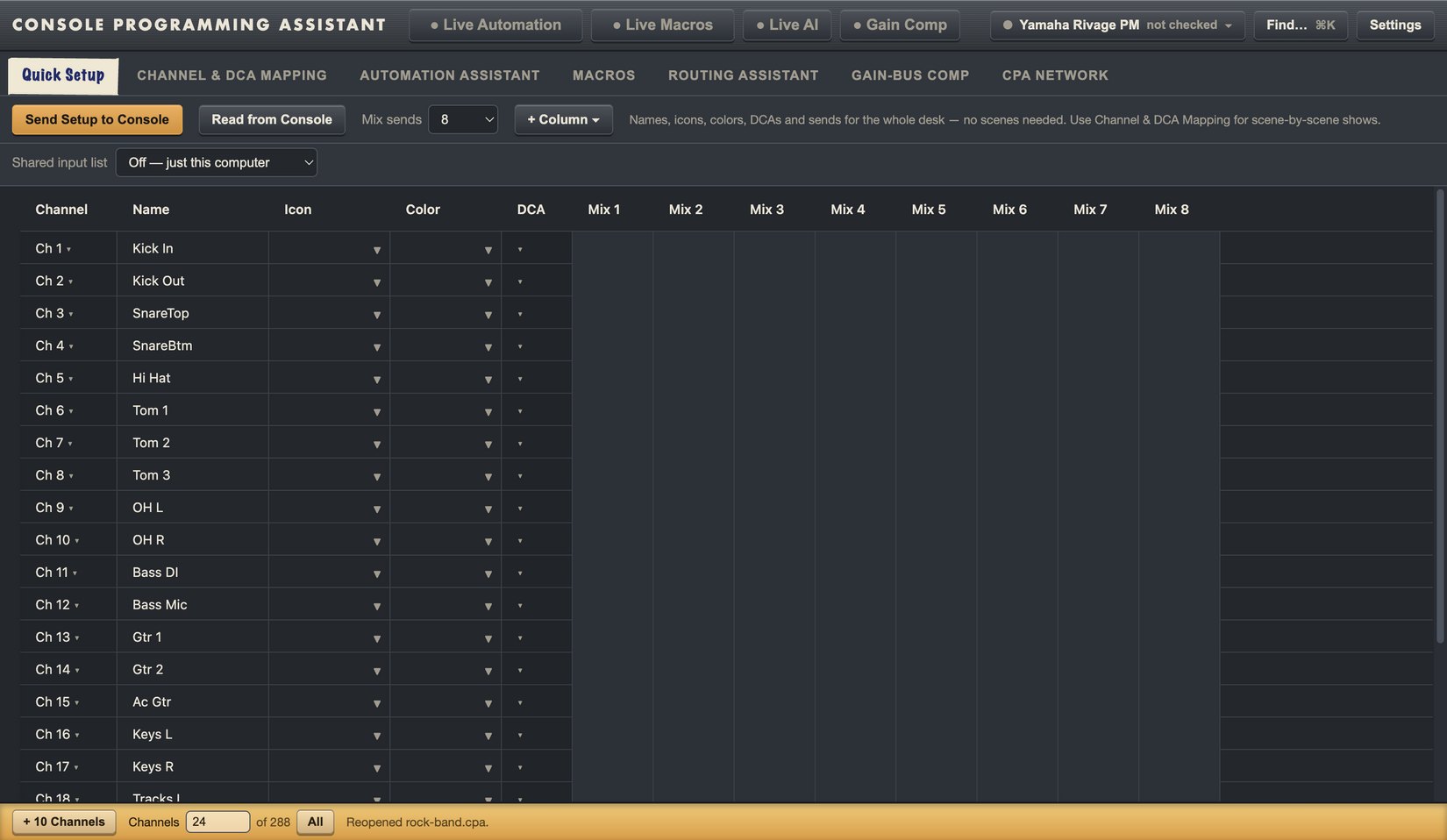
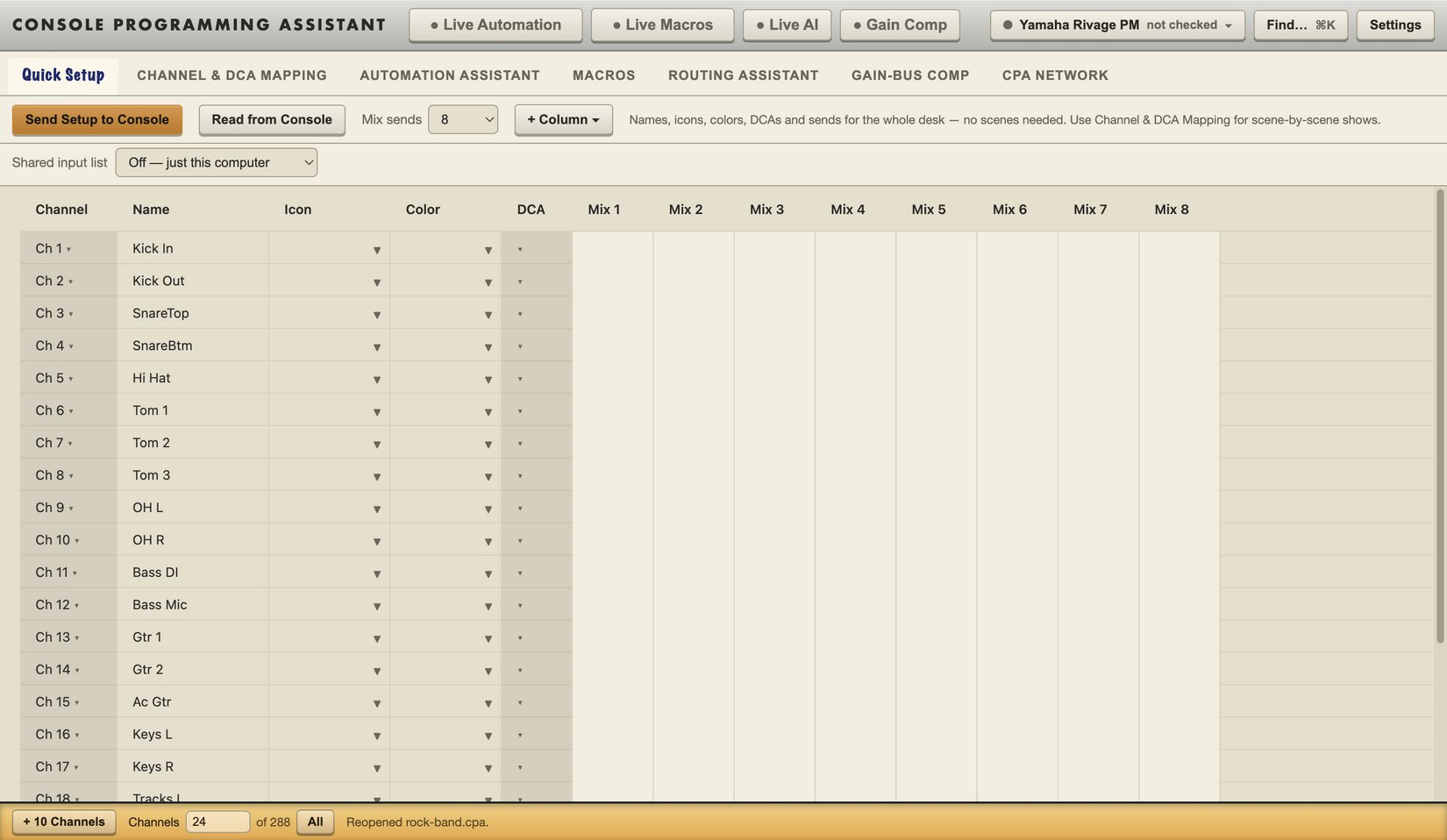
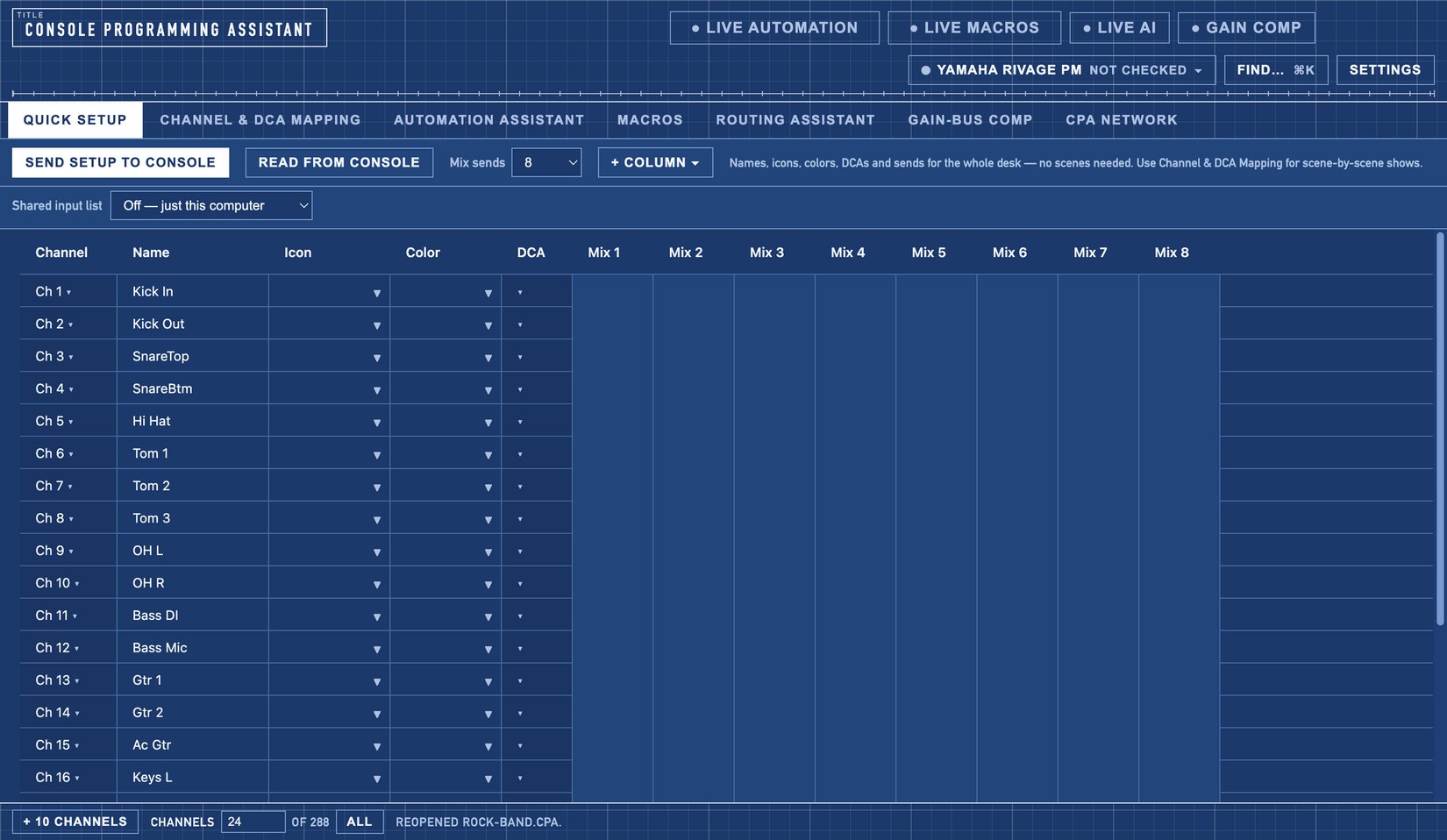
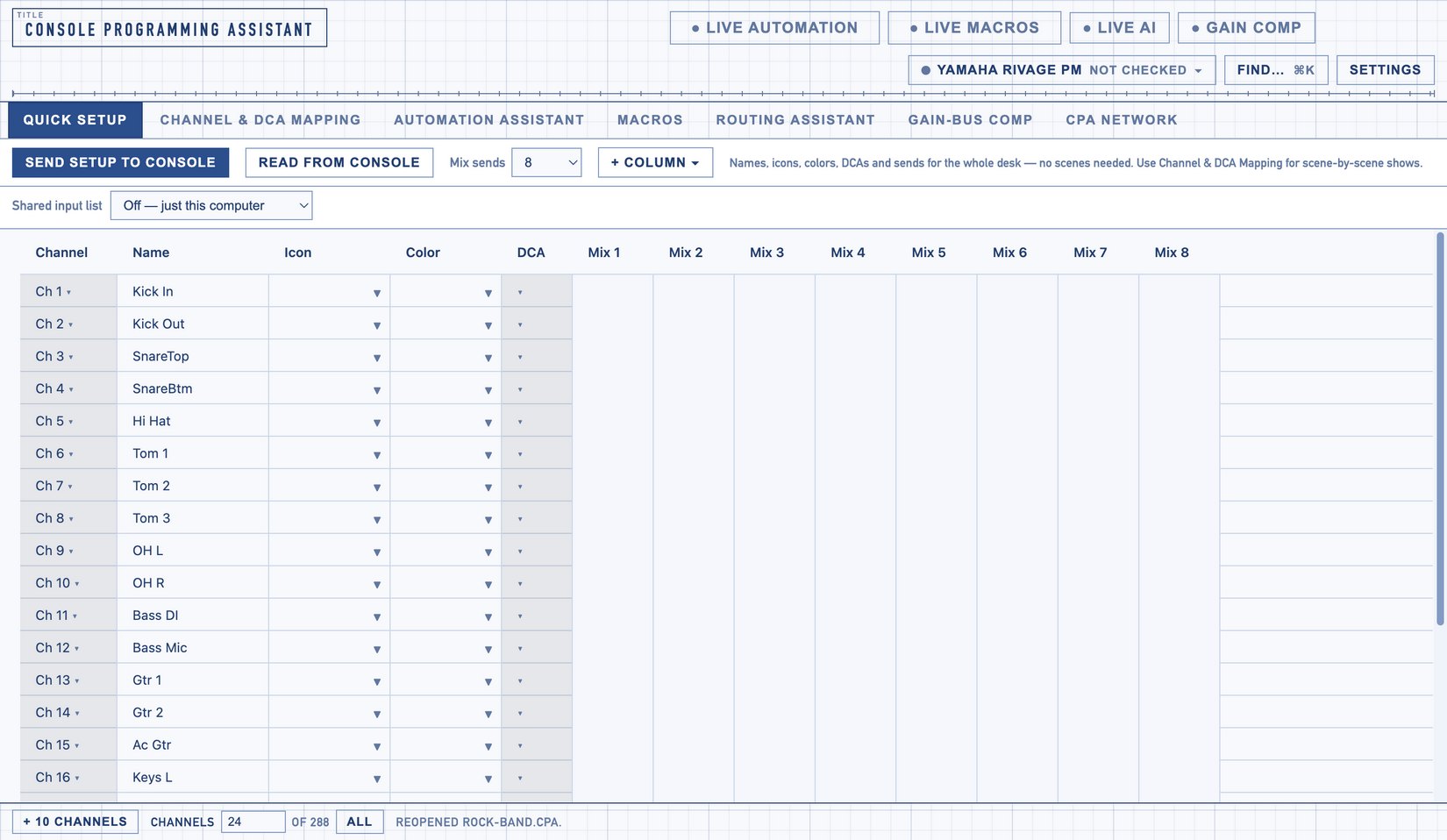
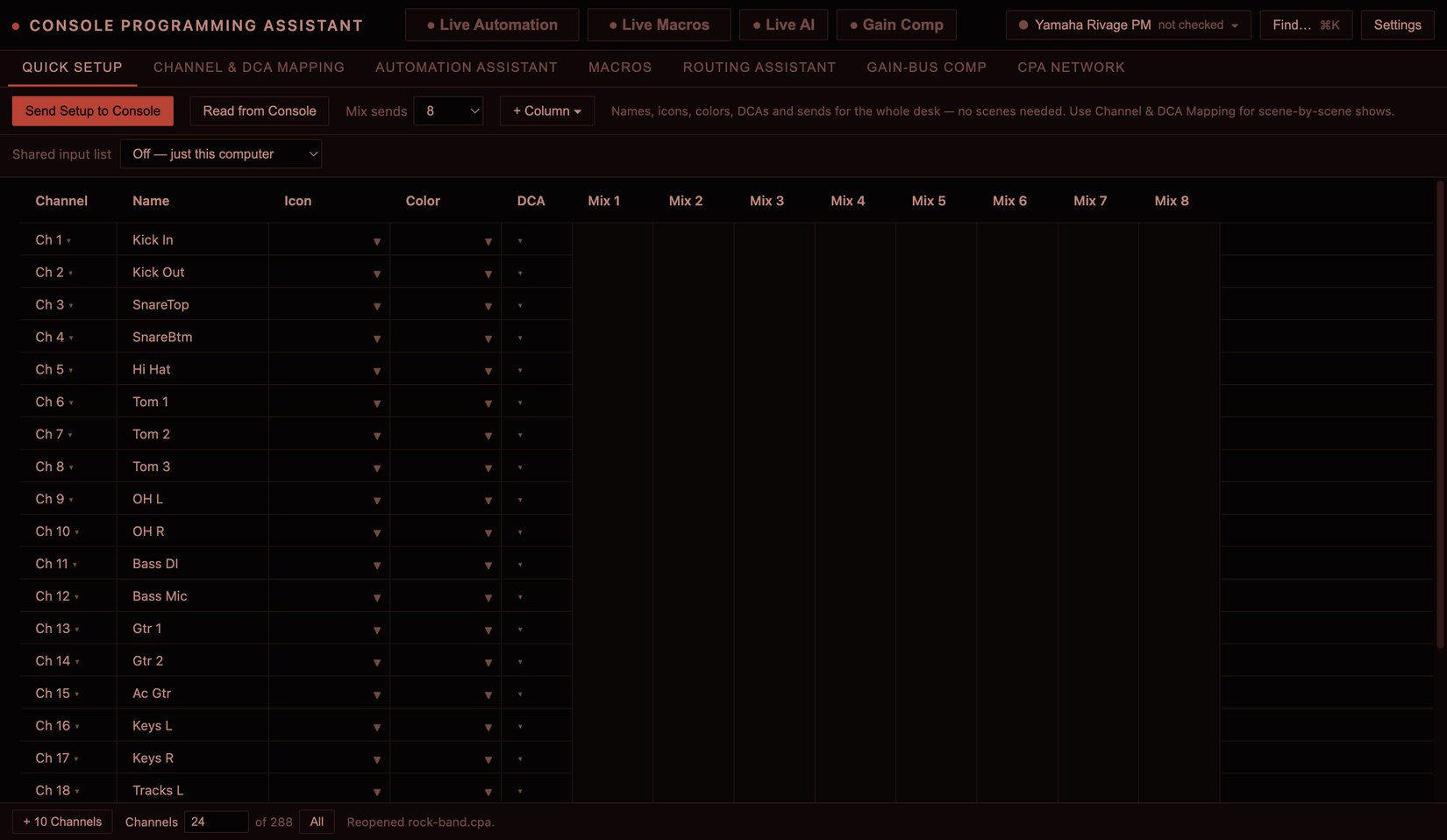
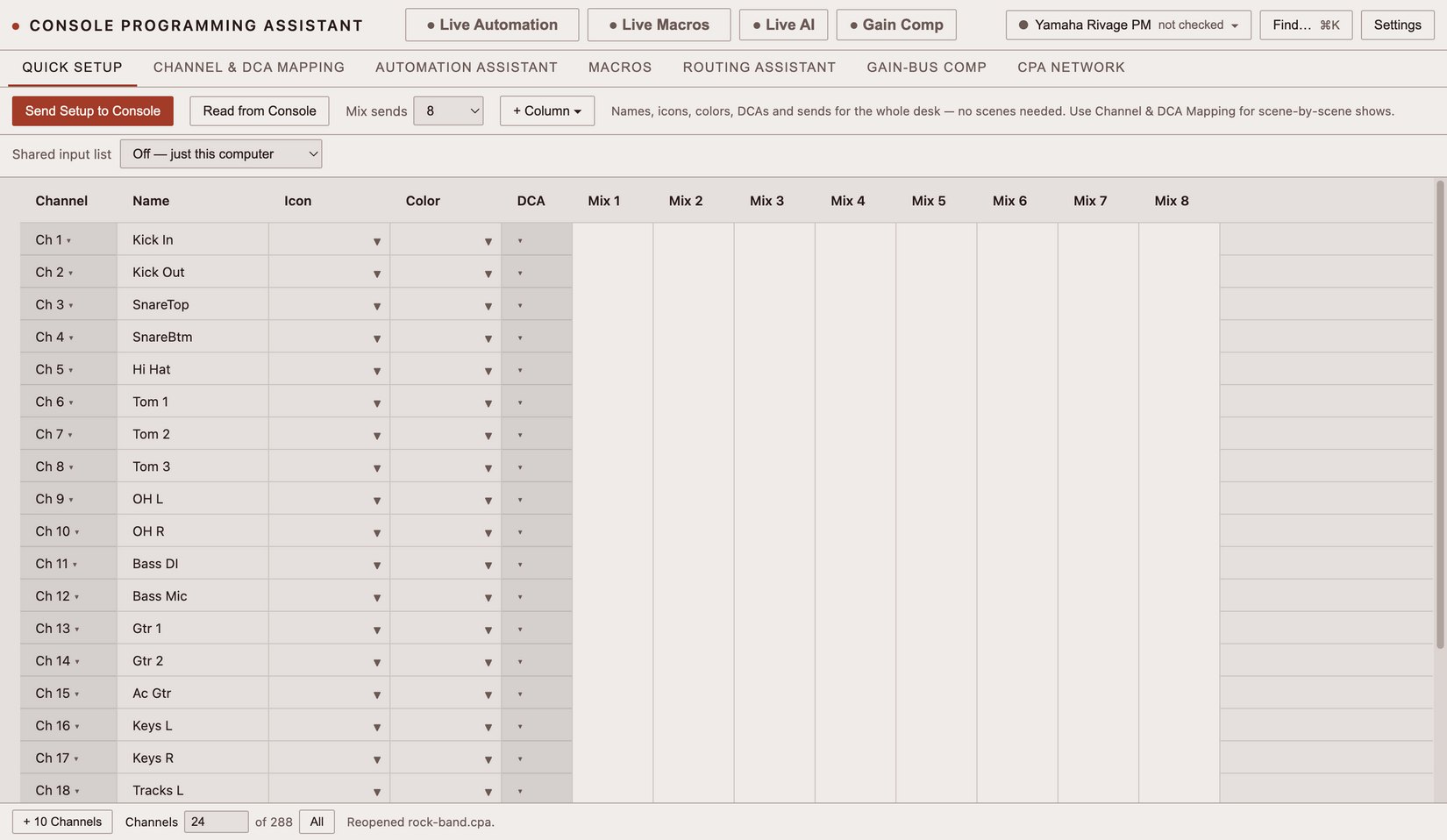
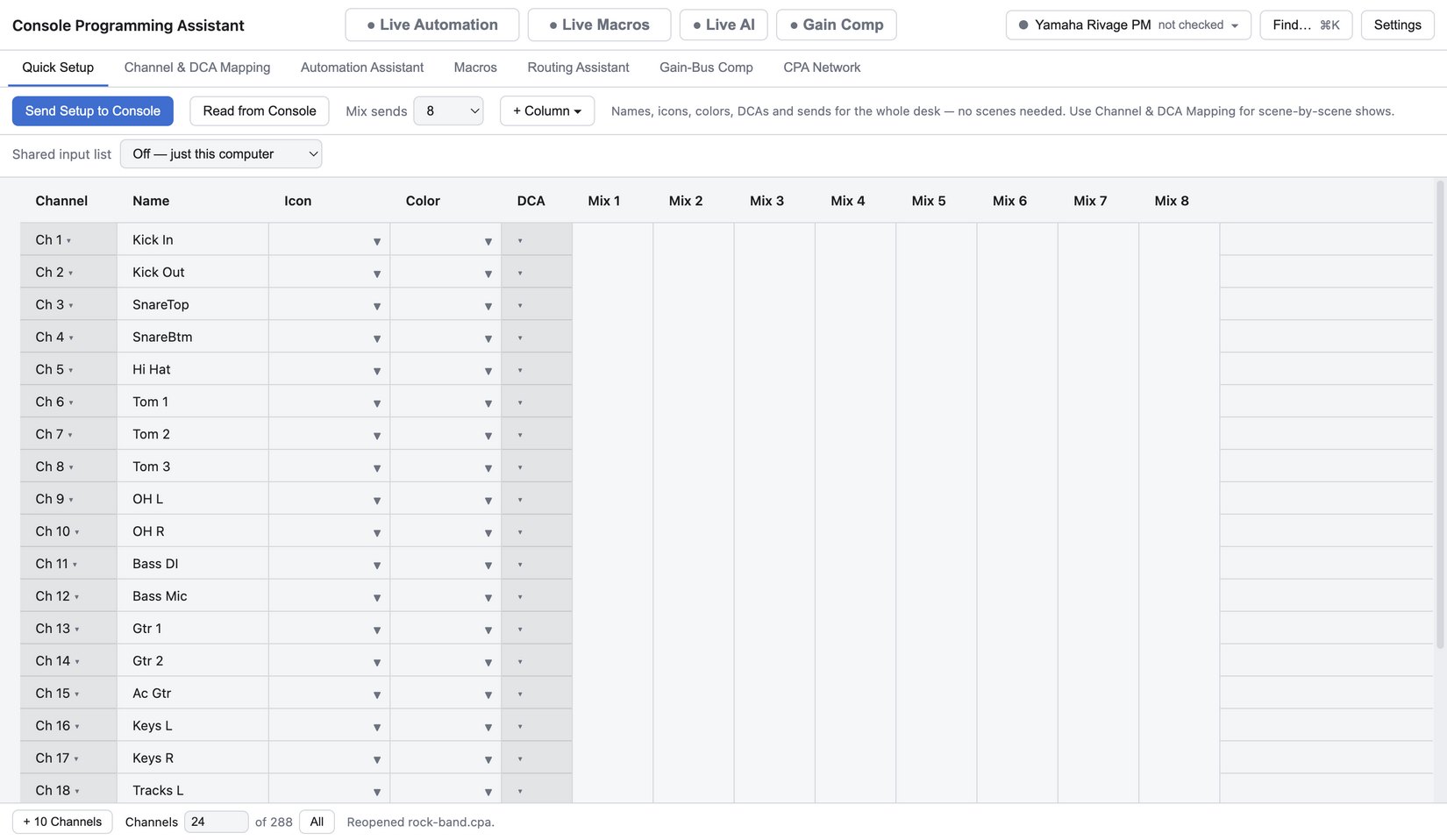
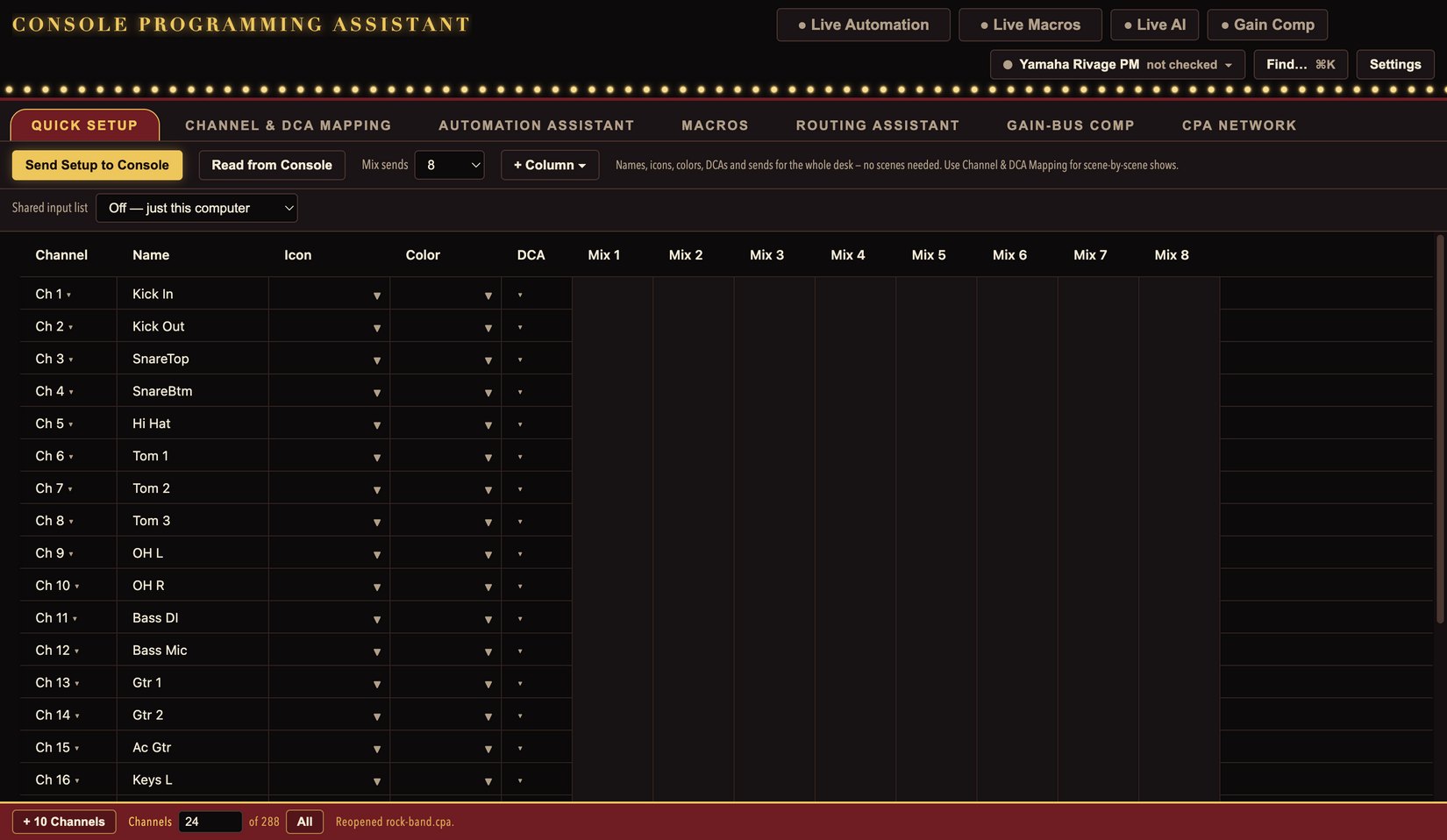
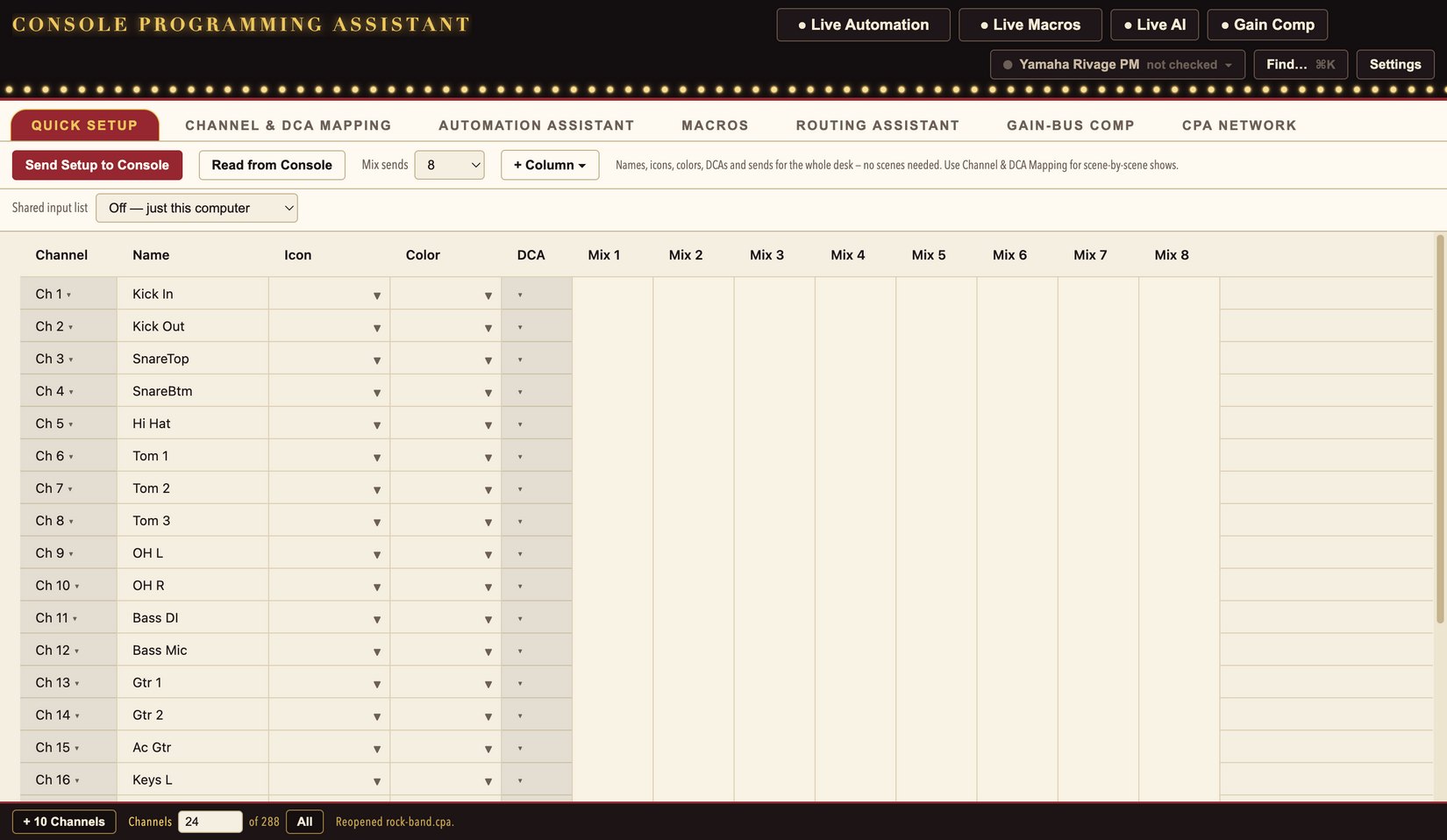
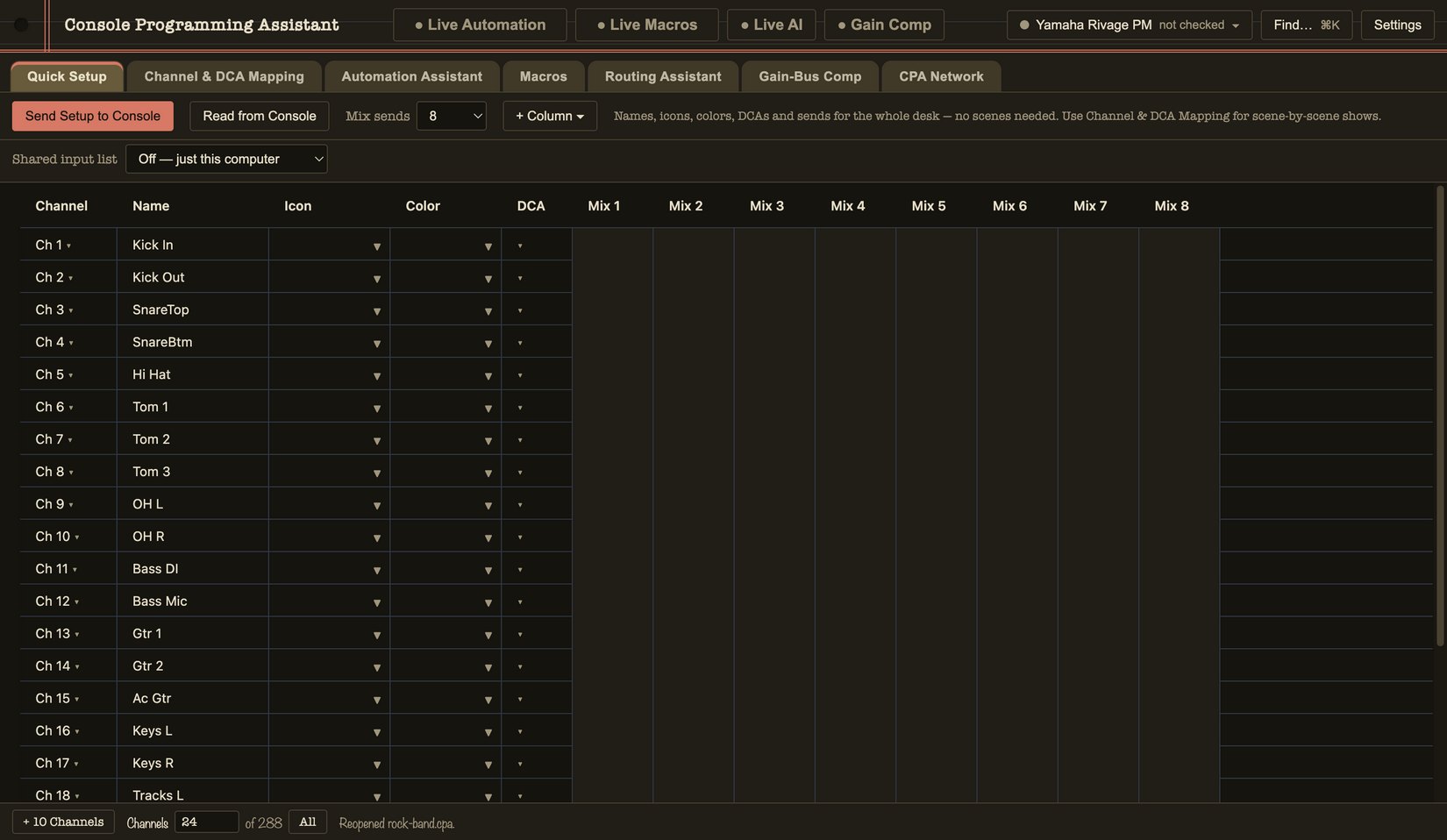
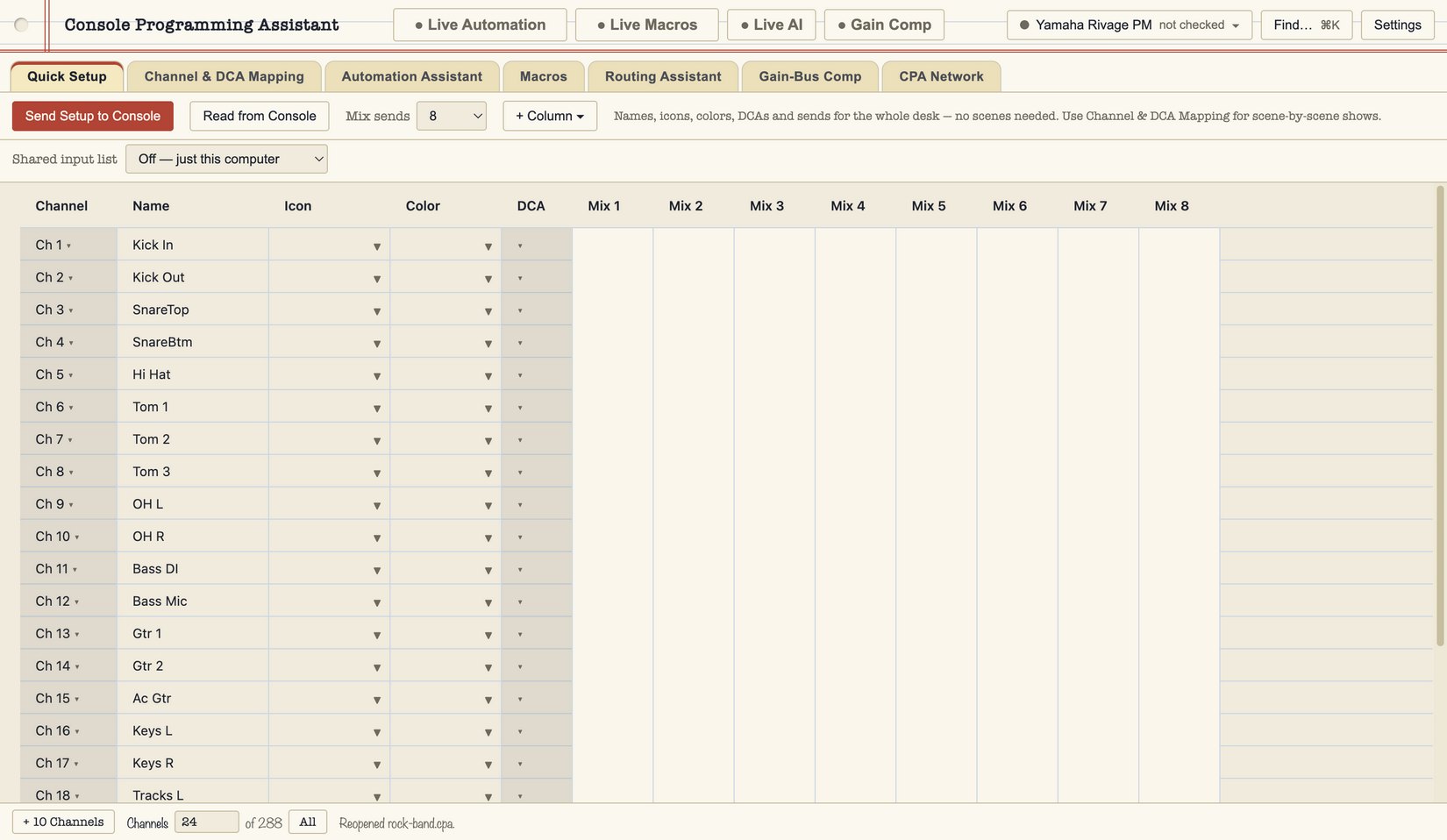
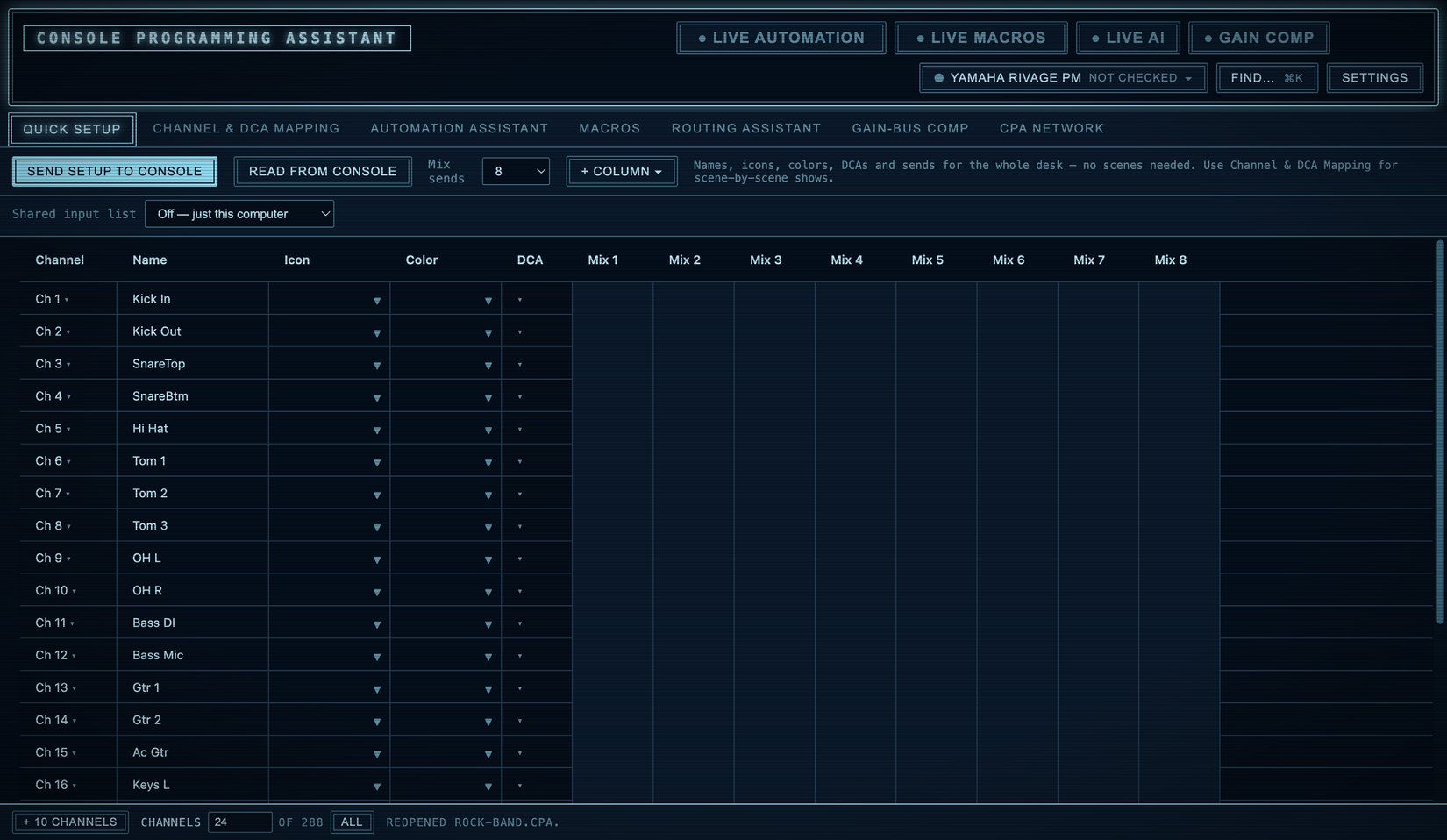
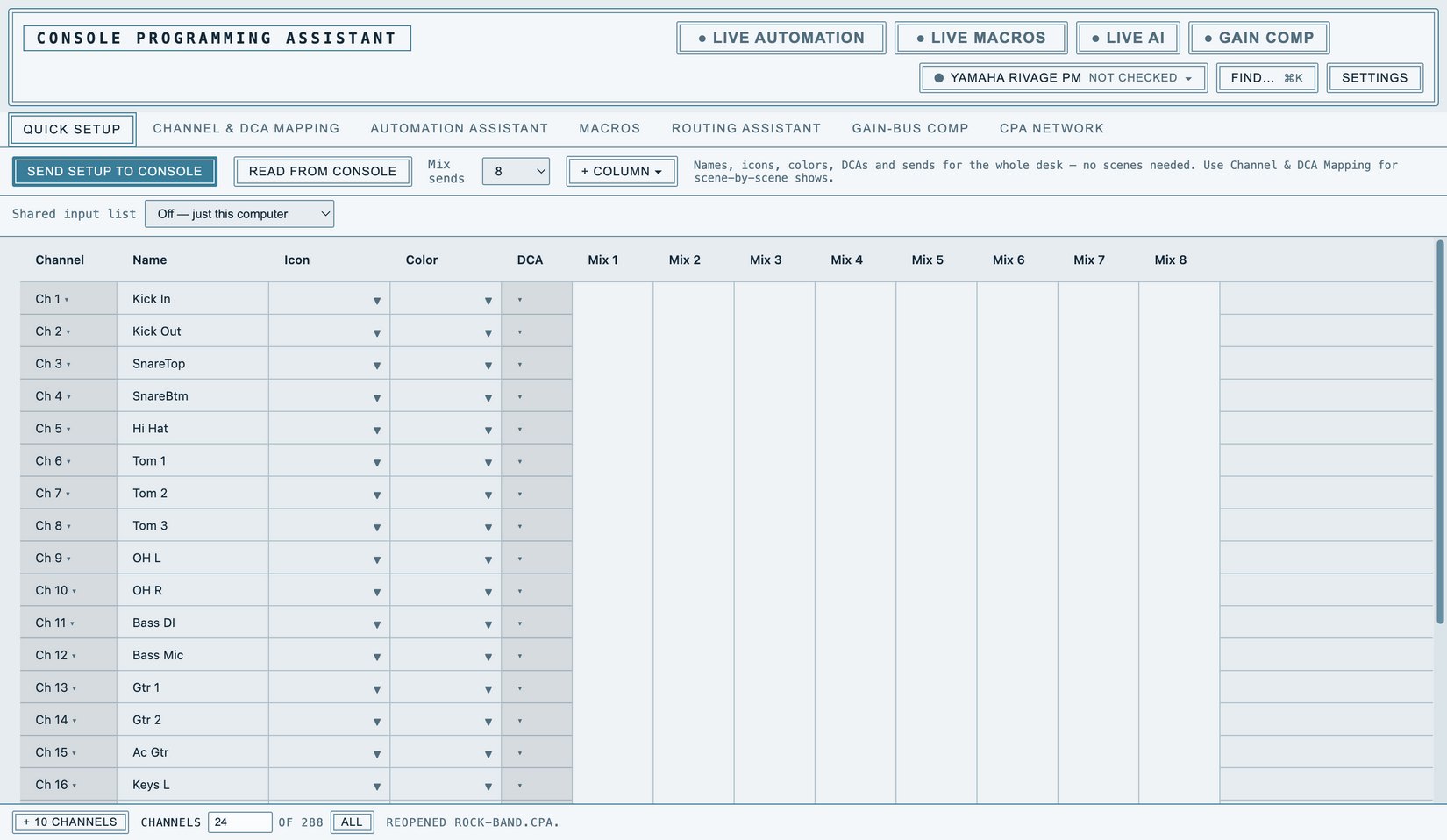
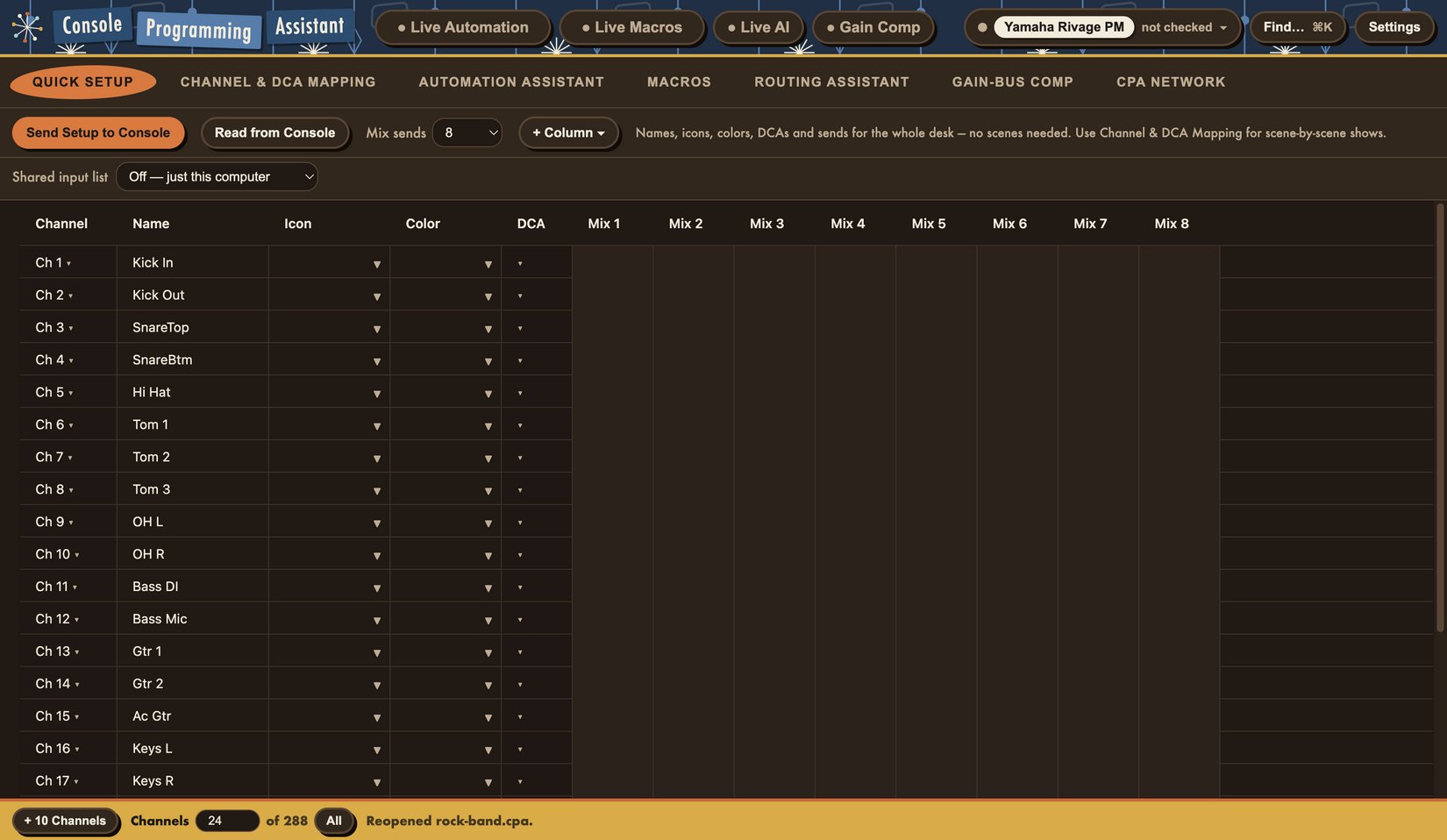
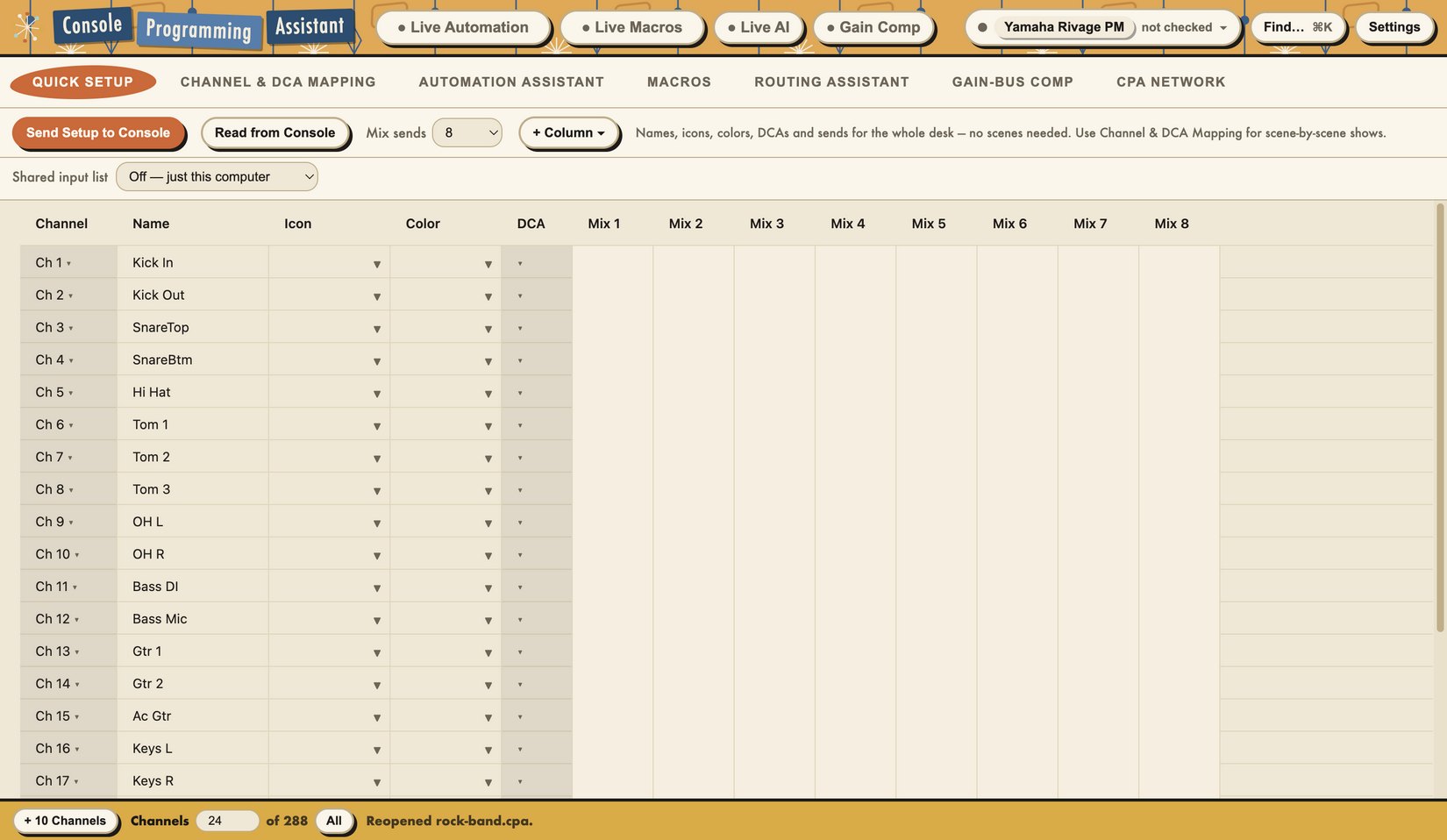
Quick Setup
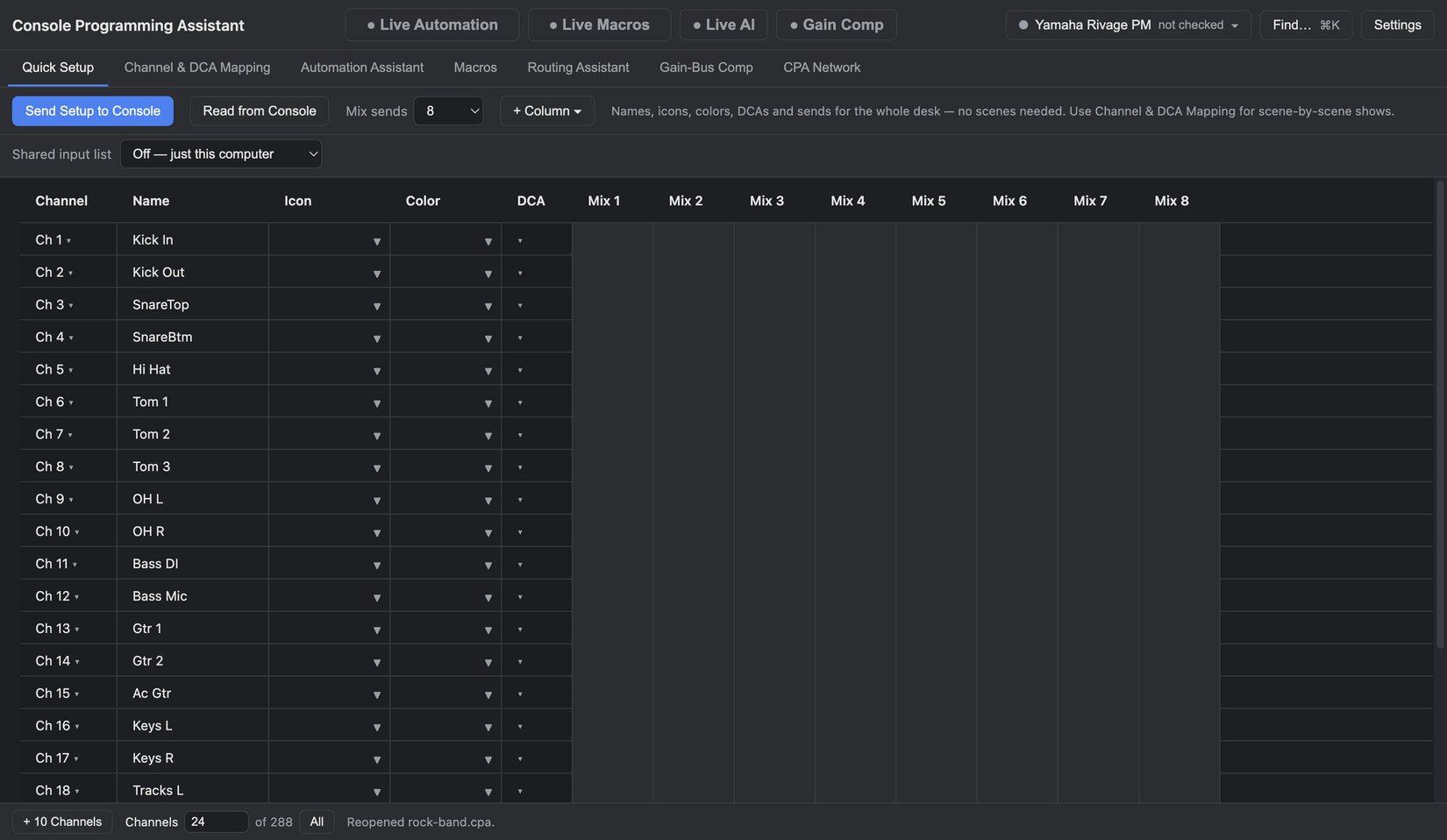
Build a patch before soundcheck
Prepare channel names, colors, icons, DCA assignments, and mix sends in one table. Draft an input list with ChatGPT or Claude, review it in CPA, then send the supported settings to your desk.
Open full-size imageShared Input Lists
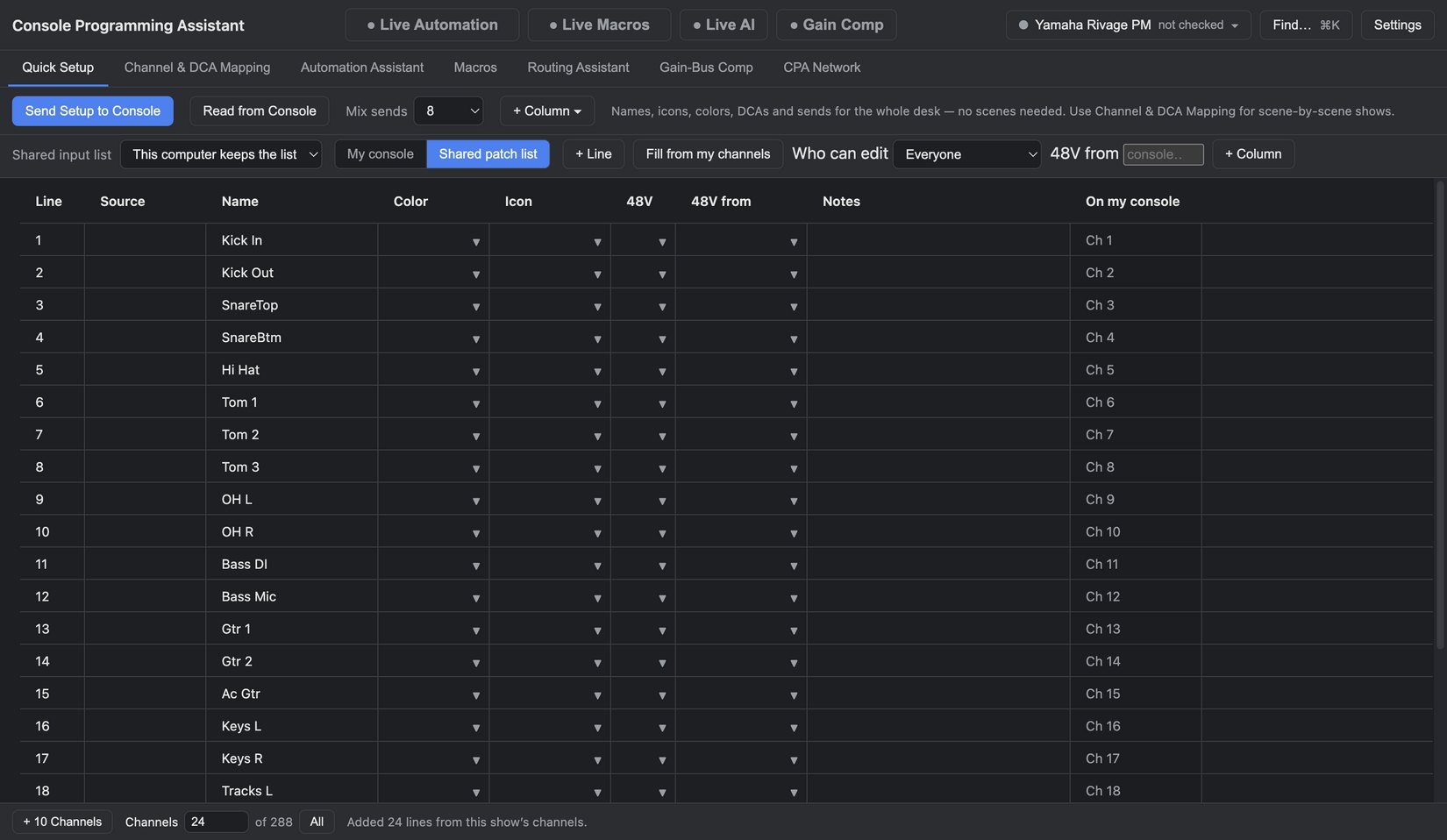
Give FOH and monitors one list
Share source names and notes across CPA computers. Each engineer can map the same inputs to different channel numbers on their own console.
Open full-size imageAI Assistants
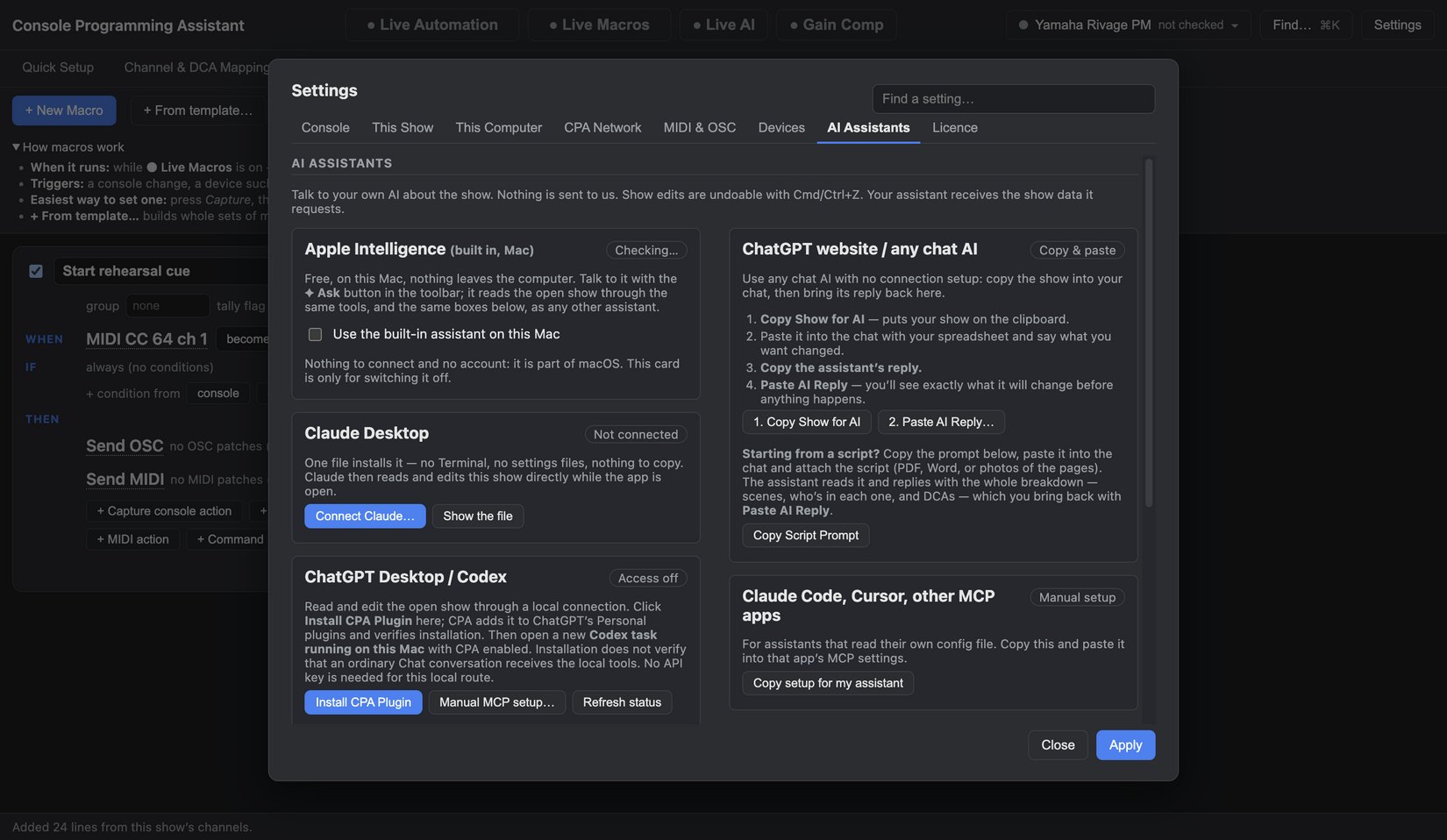
Bring the assistant you already use
Connect your own ChatGPT or Claude through the desktop plugin or extension. Use it to organize a script breakdown or draft repetitive channel edits. You review its work and control live desk access with the Live AI switch.
Open full-size imageChannel & DCA Mapping
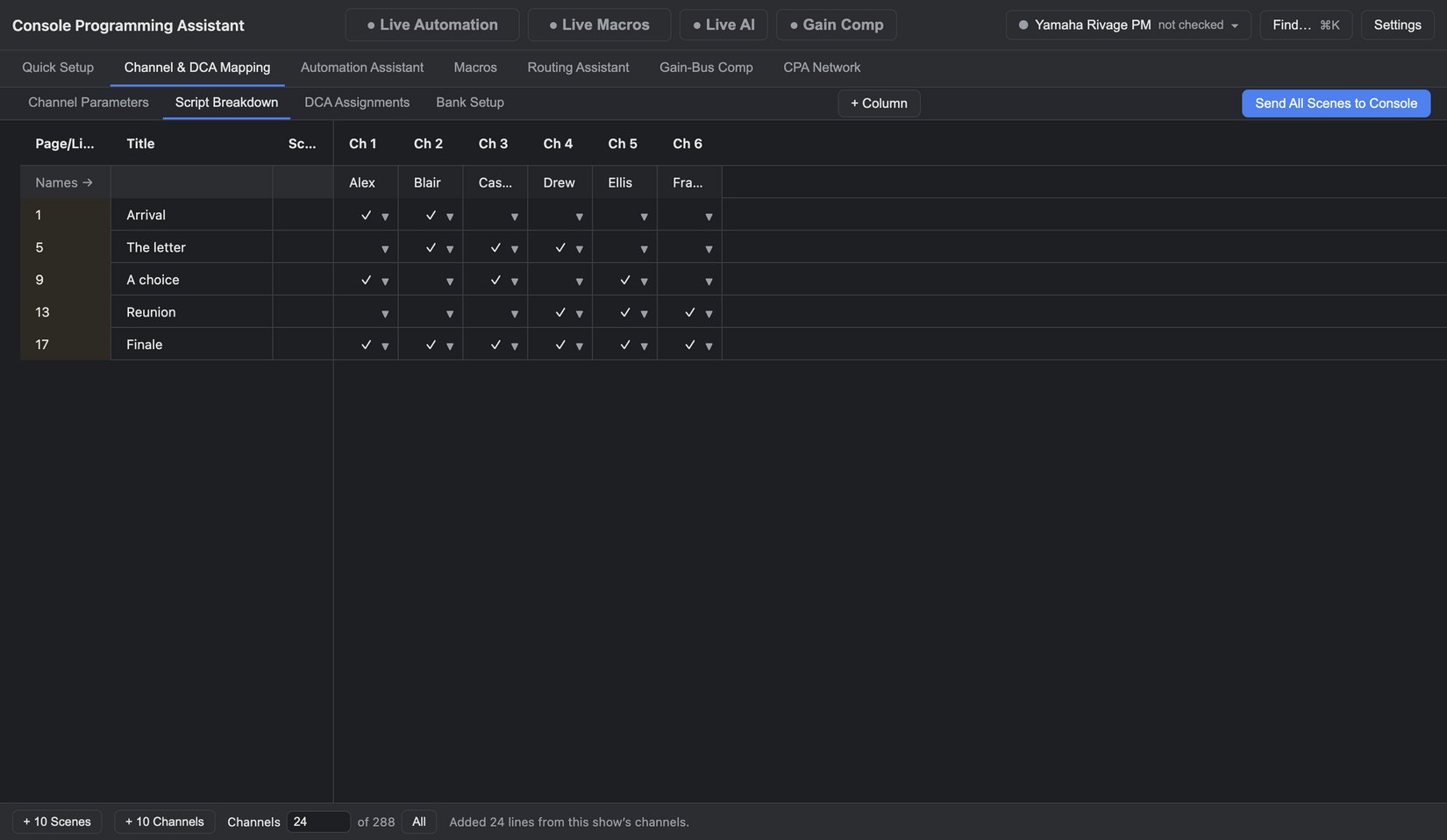
Build the show one scene at a time
Mark who’s onstage, map performers to physical inputs, and plan which microphones each DCA controls. You can do the entire workflow manually or let your connected assistant help with the repetitive parts.
Open full-size imageAutomation Assistant
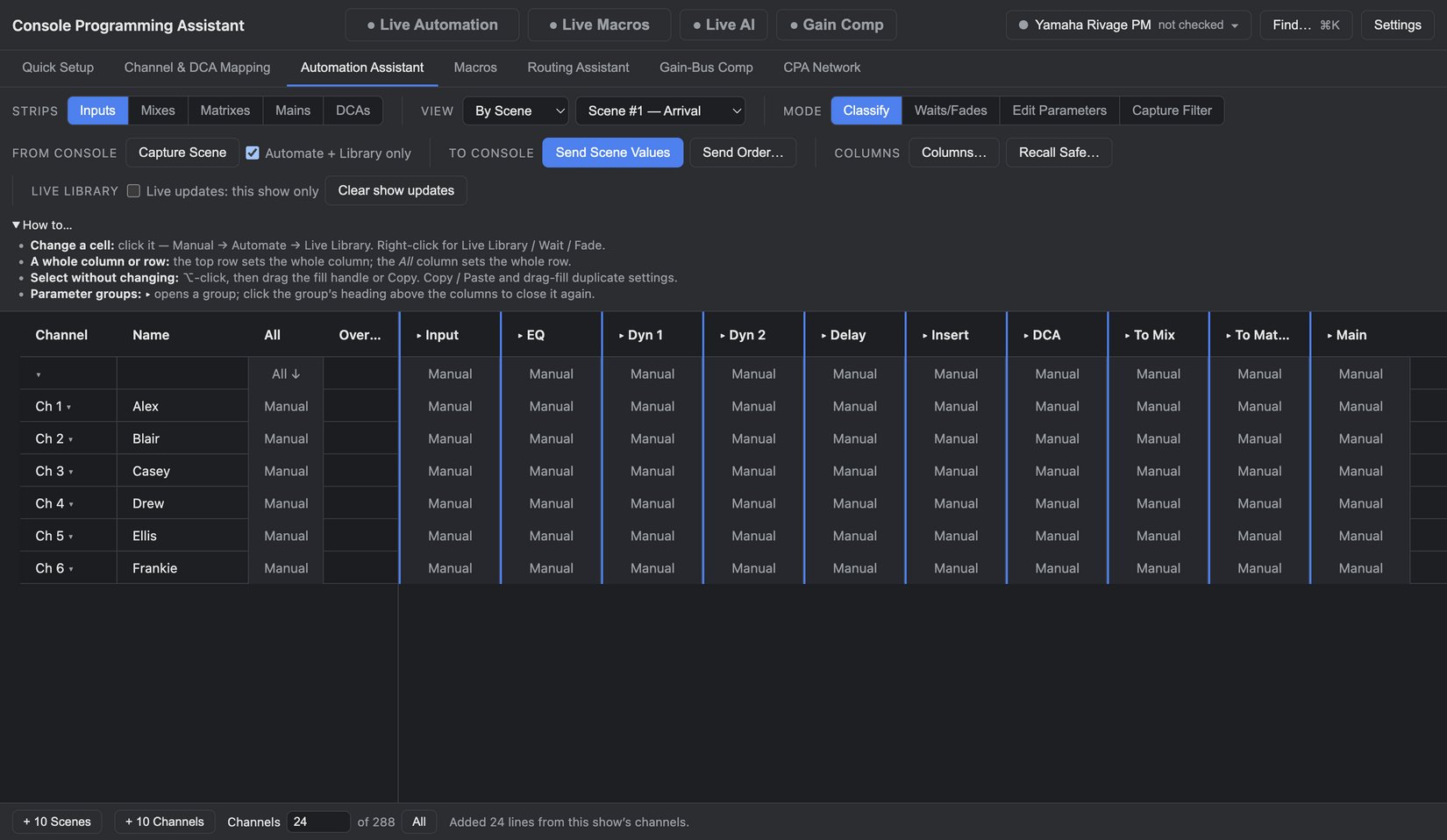
Extend the automation on your desk
Follow the console’s scene recalls and add supported parameter changes, waits, and fades. For example, add a timed send fade after a recall while keeping the cue in the console’s scene list.
Open full-size imageConsole Undo History
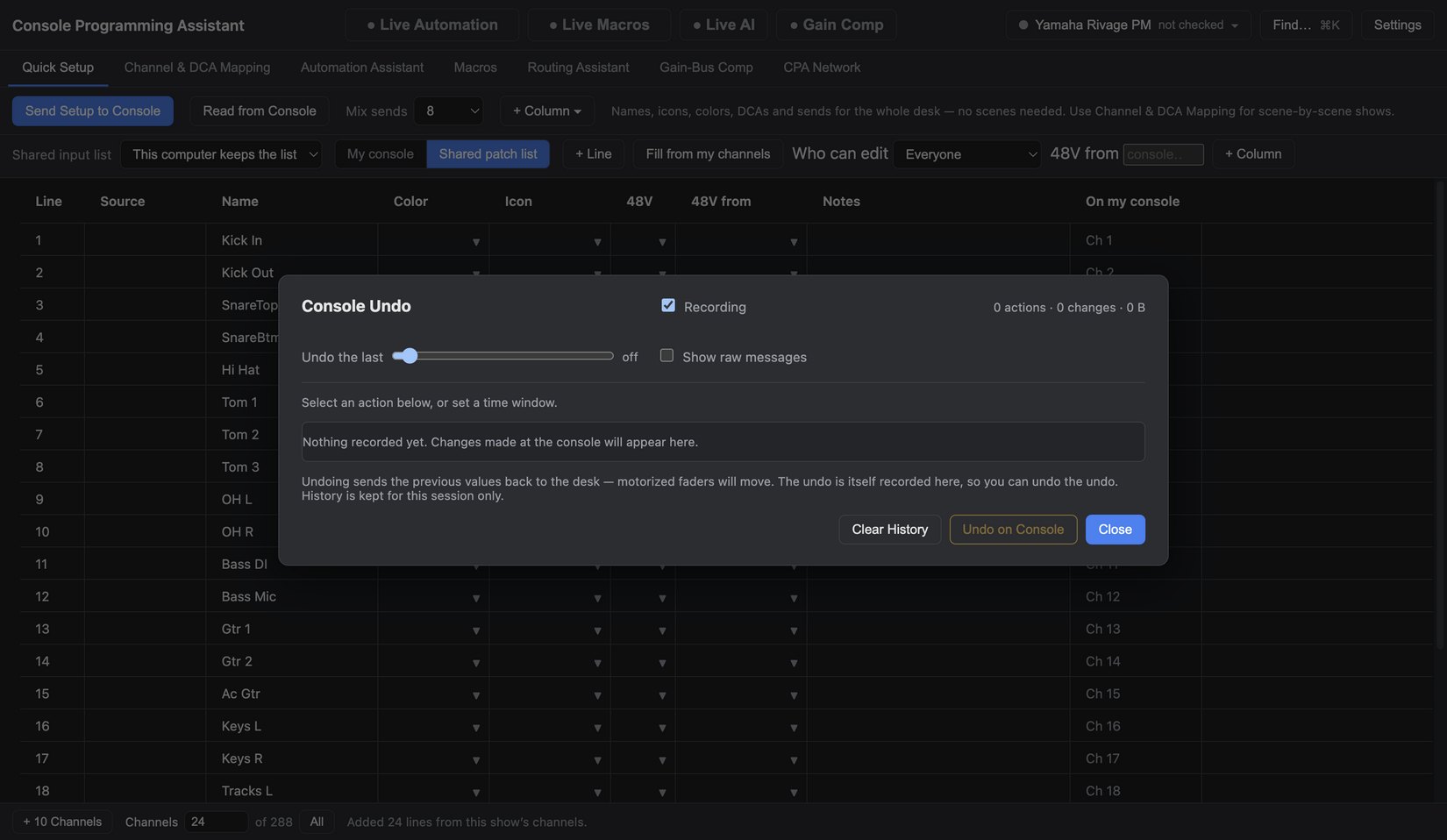
See what changed before you restore it
Review tracked console changes and compare previous settings. With Undo just this, you can reverse a single supported change while preserving later edits. The demo is disconnected, so its history starts empty.
Open full-size imageGain-Bus Compensation
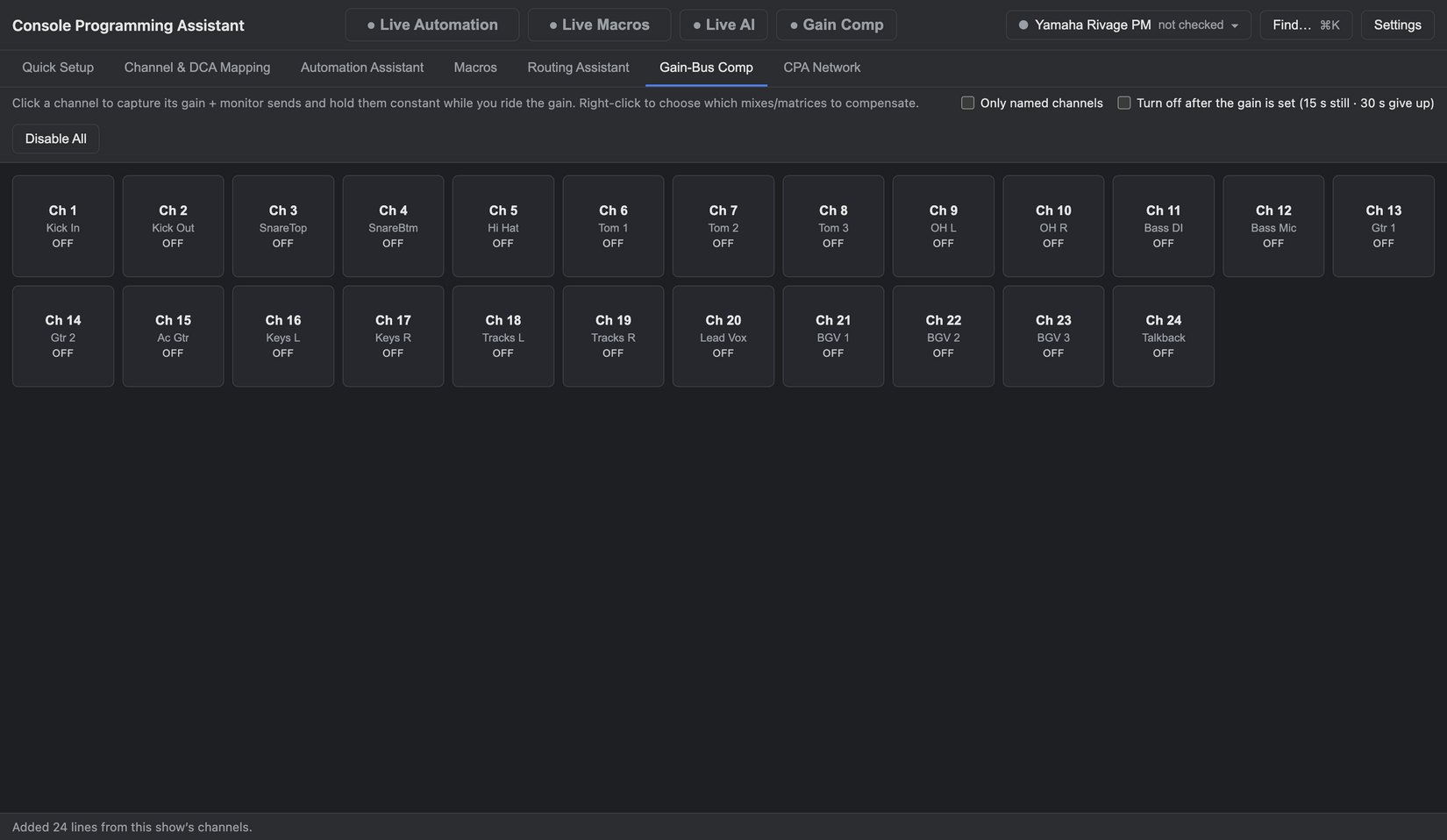
Adjust gain while holding selected sends
Choose which mix or matrix sends to compensate per input channel. If you raise input gain, CPA can adjust those sends in the opposite direction within the desk’s supported range.
Open full-size imageRouting Assistant
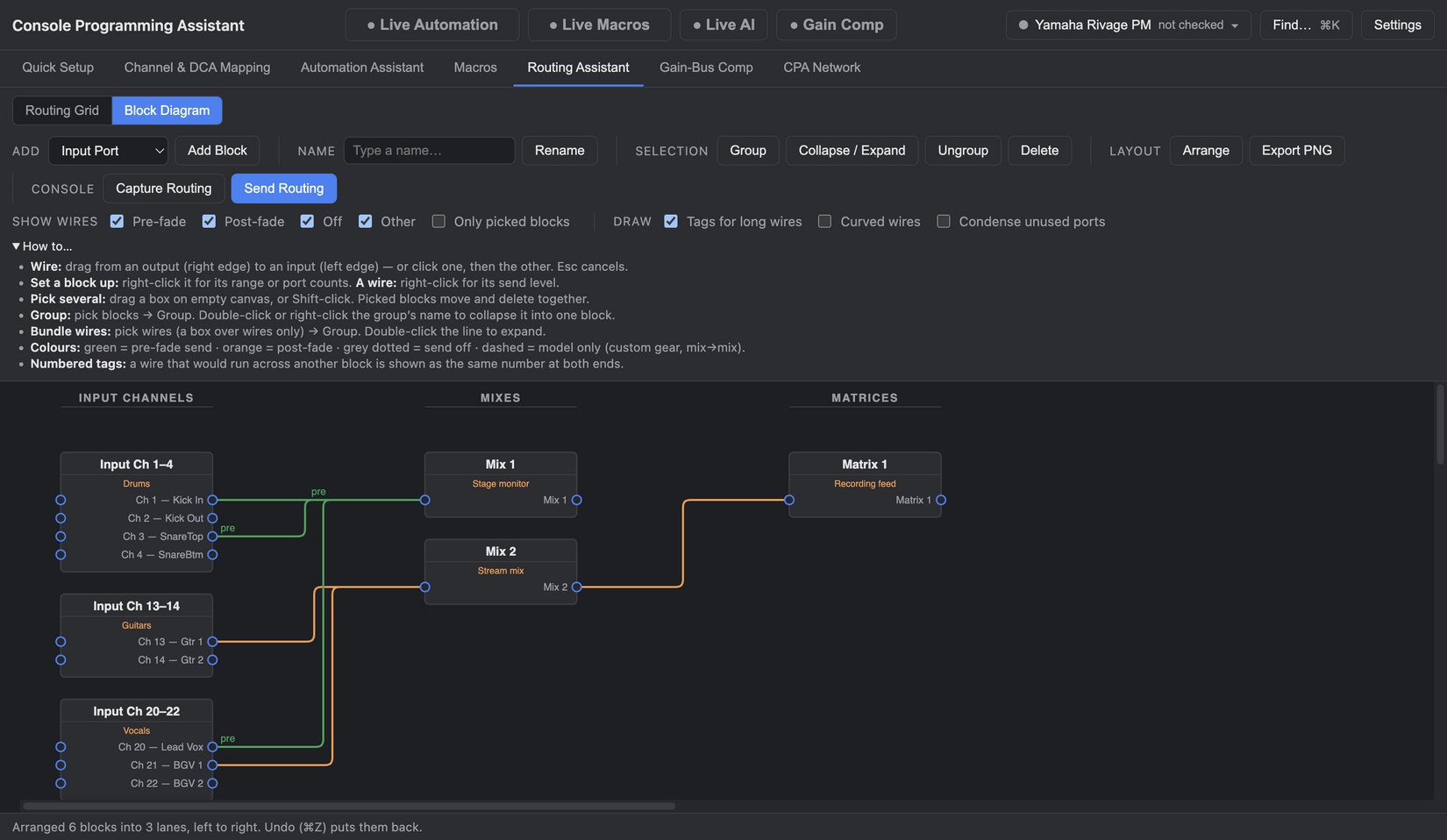
Follow the signal
Arrange blocks into signal-flow lanes, group related paths, or use the routing grid to inspect channel-to-bus sends. Review levels and pre/post choices before sending supported settings to your console.
Open full-size diagram · See the Routing GridMacros
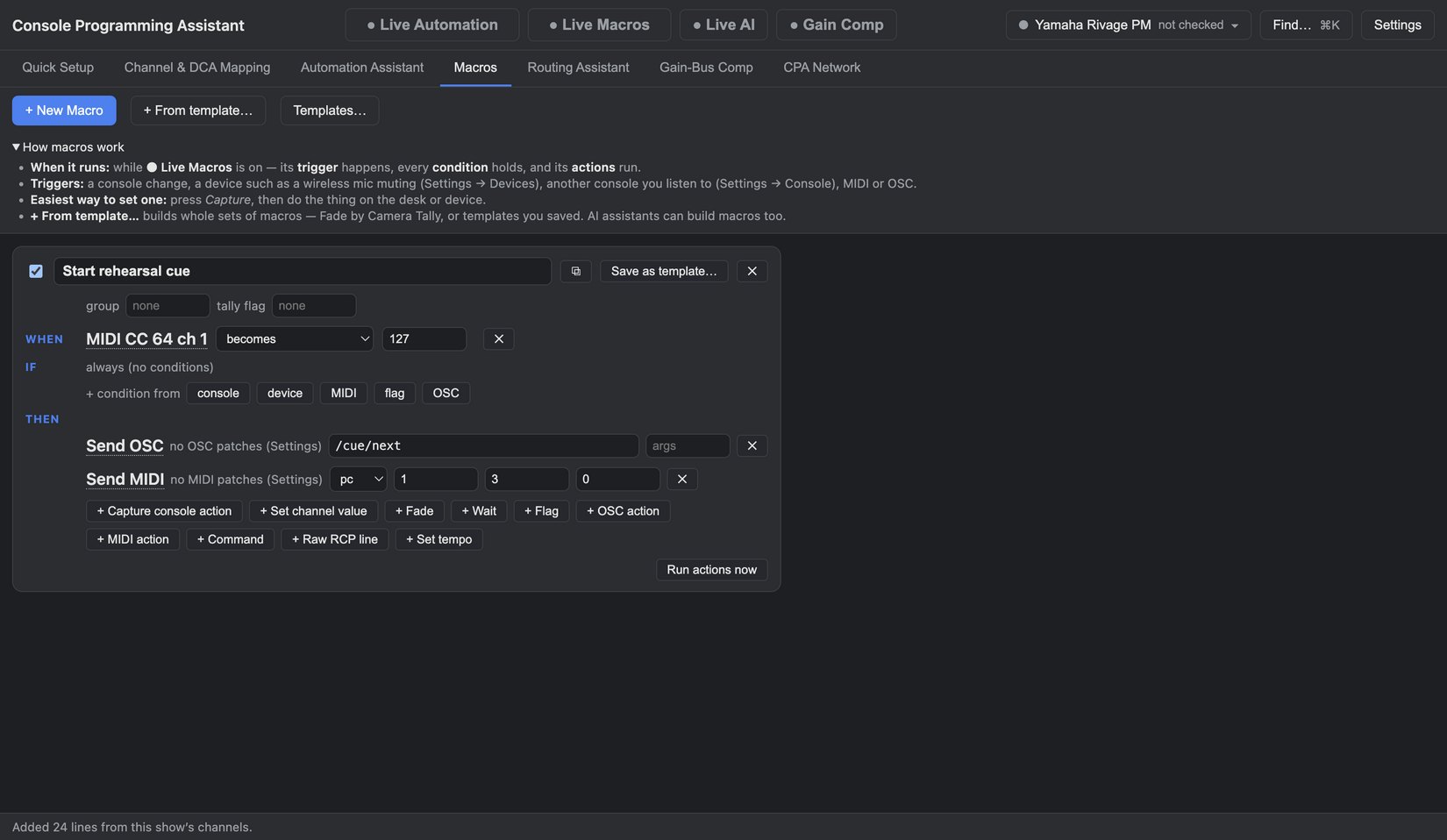
Link actions across devices
Pick a trigger, add any conditions, and run a sequence of actions. A MIDI pedal could trigger a macro that sends OSC to a cue app and MIDI to another device.
Open full-size imageCustom Panels
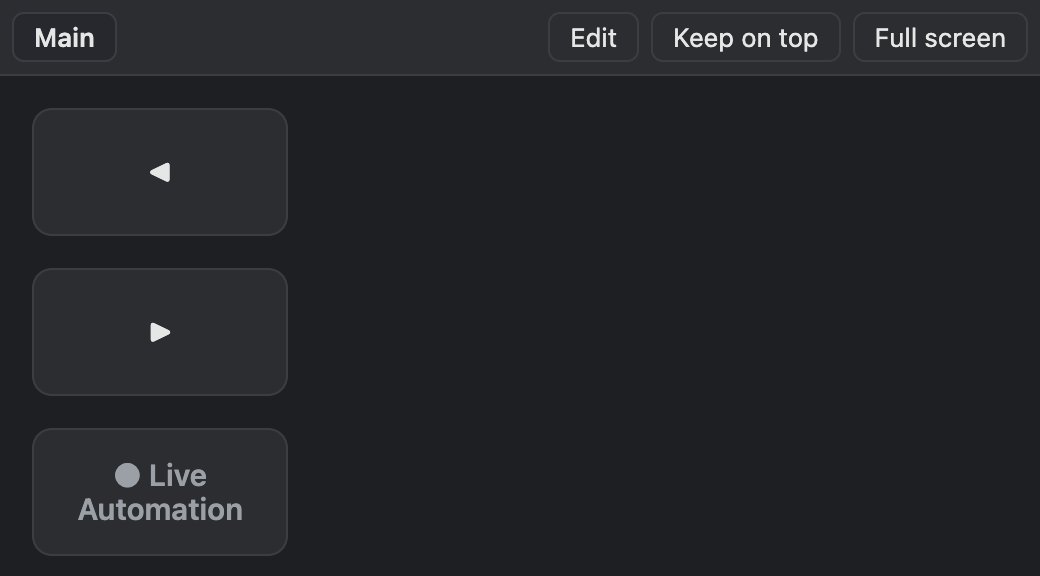
Put your most-used controls in one window
Build standalone windows with buttons, faders, knobs, and toggles. Group scene navigation, macros, or supported console controls for the job in front of you.
Open full-size imageMIDI Triggers
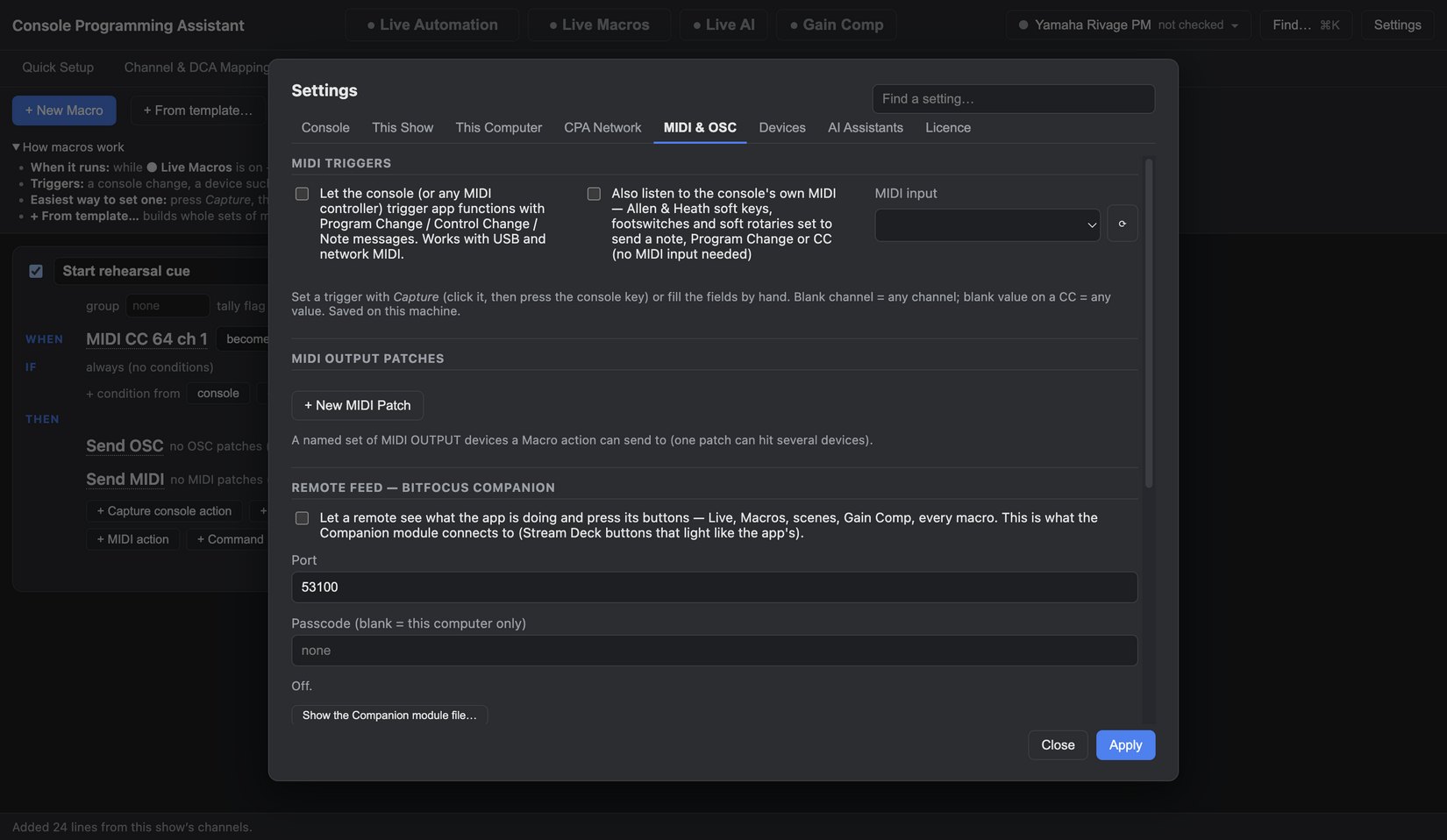
Put a cue on your MIDI controller
Map Program Change or Control Change messages from a foot controller or desk to app actions. Use MIDI Learn to assign the control you already reach for.
Open full-size imageOSC & Bitfocus Companion
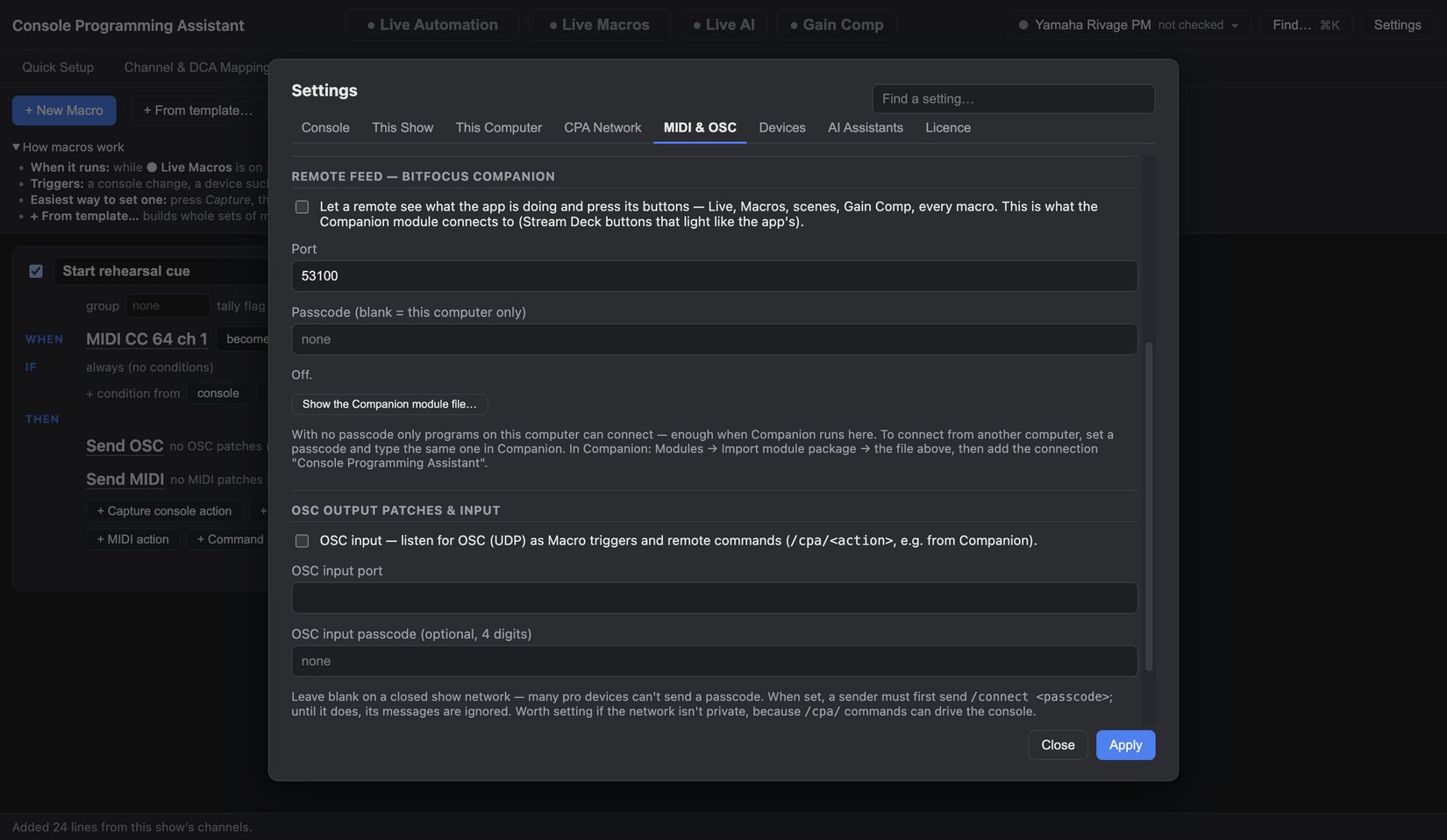
Connect cue apps and Stream Deck
Receive OSC cues from a networked tool or send OSC from a macro. In builds with the CPA module for Bitfocus Companion, Stream Deck buttons can run commands and show feedback such as the current scene.
Open full-size imageCaptured in the actual Mac app with fictional projects and console control off. Supported desk operations vary by model, firmware, and beta build. Import or export Excel and CSV tables if you already keep your show plan in a spreadsheet.